
Your screen.
Your assistant.
A native Windows AI assistant for screen questions, transcription, and notes. Your models, with capture protection built in.
Keep it on
your screen.
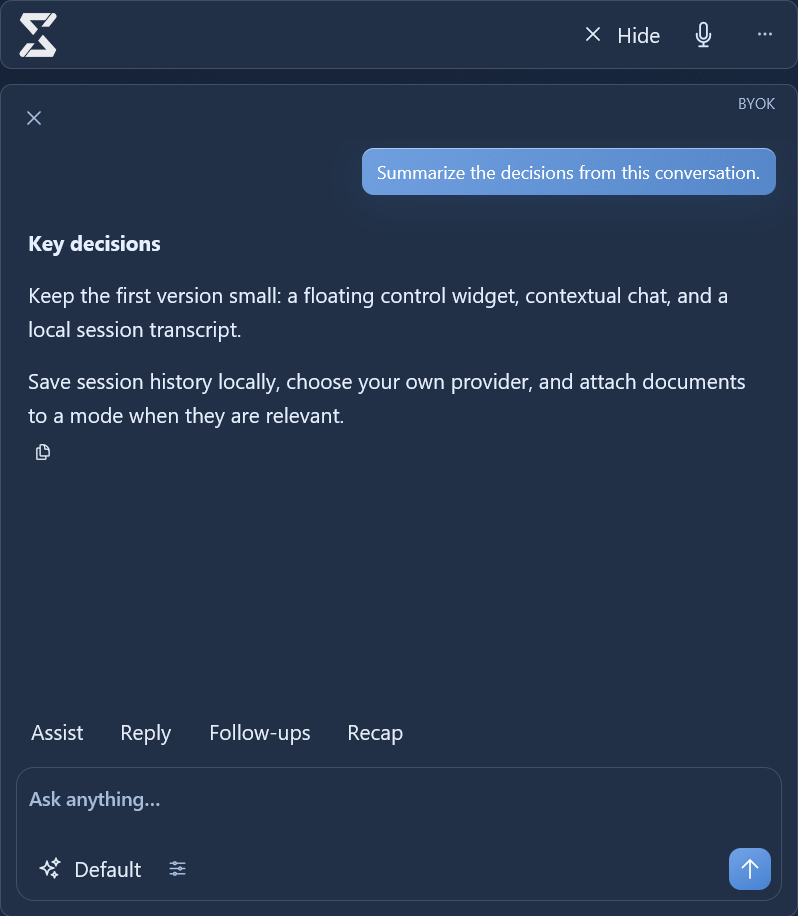
Capture protection uses Windows’ SetWindowDisplayAffinity API. You see the assistant; supported screen captures leave it out.
Show or hide the assistant with a shortcut. Capture protection depends on the recording or screen-sharing tool.
See it in use.
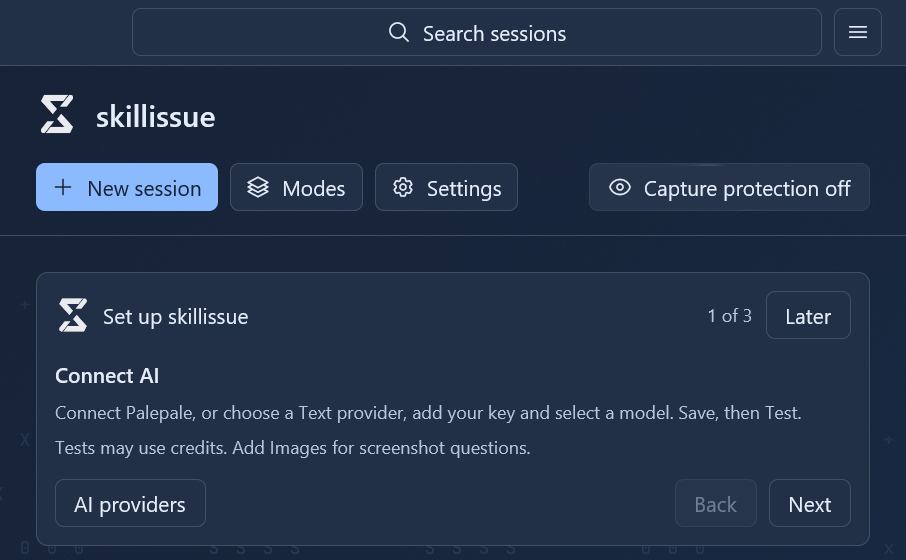
Start recording when you need it. Ask a question, save the transcript, and return to your notes later.
History on your PC. Return to saved sessions without uploading your history to another service.
A shortcut away. Show the assistant, ask a question, or start a session from your keyboard.
Your models.
Your call.
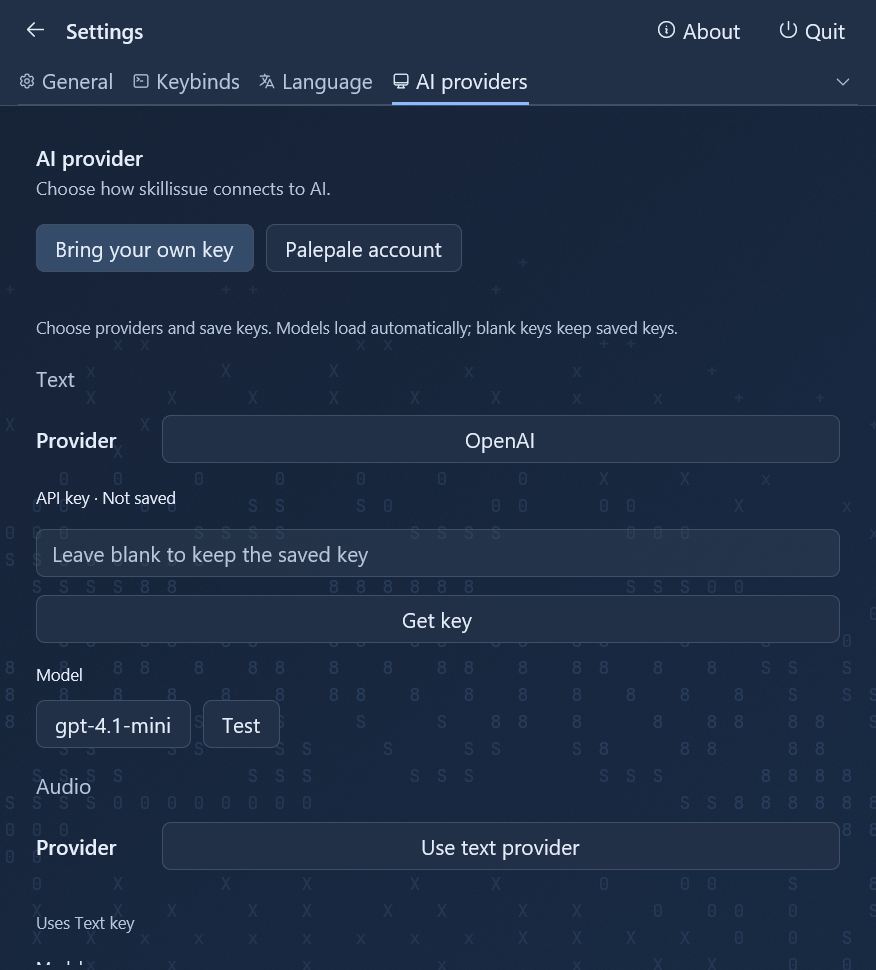
Bring your own API keys, connect Palepale, or mix the two. Text, Audio, and Images each have their own provider and model.
Before you start.
What runs locally, what gets sent, and what stealth can do.
What do I need to run it?
A Windows 11 PC with an x64 processor. Download the installer, connect your providers, and choose your models.
Does it cost anything?
skillissue is open source. Your AI provider charges for API usage, or you can use your Palepale account. Provider rates and plans apply.
Will it stay out of screen recordings?
Capture protection uses Windows’ SetWindowDisplayAffinity API to exclude the app from supported capture tools. It does not guarantee invisibility in every recording or screen-sharing app.
Where does my data go?
Session history stays on your PC. Questions and the context needed to answer them, including selected screenshots or captured audio, are sent to your configured providers. Start audio capture when you need it.
For people with
skill issues.
Windows 11 · x64 · Open source